Most Instagram sellers start by keeping orders in a notes app, a spreadsheet or just their DM scroll. It works for the first ten orders. By the fiftieth, you are scrolling through chats to find who paid, who has not and who is waiting for a parcel. The Checkout DM Orders tab replaces that with one list. This guide explains what each part of it shows and how to use it day to day.
One row per order
Every order placed through the bot appears in the Orders tab. Each row shows:
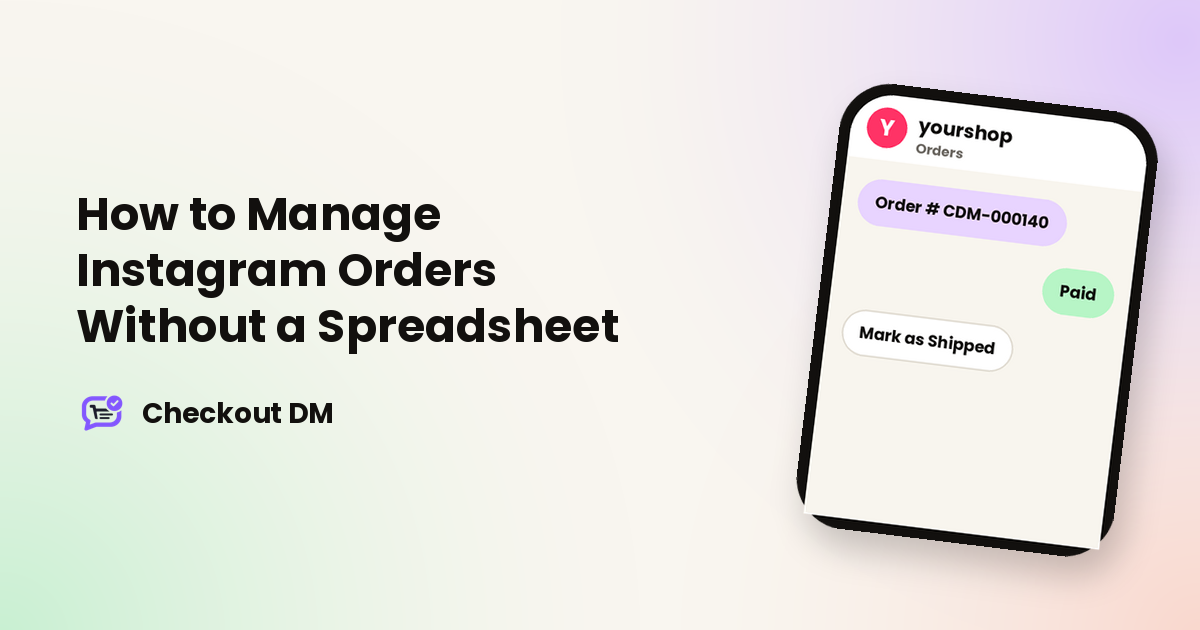
- Order number: a short reference such as CDM-000140. Use it when a customer quotes it to you, or when you search for an order.
- Customer: who placed the order, linked to their Instagram profile when their handle is on file.
- Items: every product in the order, one per line, with the size if it has one and the quantity. For example, Red T-Shirt, M, times 9 means nine units in size M in a single order.
- Total: the final amount the customer paid. If a discount or shipping fee applied, a View breakup link shows the subtotal, discount and shipping separately.
- Status: where the order stands, such as pending payment, paid or returned. Tap the badge for a plain explanation. Our guide to Checkout DM status badges lists them all.
- Date: when the order was placed.
On Growth and Pro, a further column shows which discount applied: the exact coupon code the customer typed, or an Auto badge when your best automatic discount applied instead.
Confirming payments
If you take payment manually by UPI QR code, UPI ID or bank transfer, Checkout DM cannot confirm the payment for you the way it can with a gateway link. The customer sends a screenshot of the payment in the DM, and it appears in the Orders tab for you to check against your bank account. You then press Confirm or Reject. The screenshot is deleted from Checkout DM’s own storage after 90 days, but it stays visible in your Instagram DM thread with that customer. If you use a gateway, payments are confirmed automatically. Our guide to avoiding fake payment screenshots explains what to look for.
Shipping and the return window
On Starter, Growth and Pro, each order shows Not shipped yet with a Mark as Shipped button. Once you press it, the row shows the ship date. That date matters beyond your own records, because for physical orders it starts the customer’s return window, plus a short buffer for transit. Until you mark an order shipped, no countdown is running. If you use Shiprocket or Shippo, our guide to auto-shipping Instagram orders shows how to connect them. Free accounts see items and payment status, but not the shipping controls.
Returns from the same place
For a paid order with no return on file, a Log a return link lets you record one yourself, for example when an item arrived damaged or you sent the wrong size. You do not have to wait for the customer to ask. Logging a return yourself is not limited by the return window, which only applies when a customer requests one through the bot. Once a return exists, the column shows its status instead. Approving a return restocks the item automatically and notifies the customer. See returns and exchanges in Instagram DMs for the whole flow.
Knowing your customer
The Customers tab holds each customer’s name, phone, email and latest address, plus how many orders they have placed and how much they have paid in total. A history button opens a full timeline of that customer’s orders and returns, which is useful before you reply to a complaint or a return. You can also correct their details there if they typed something wrong.
Exports and numbers
On Growth and Pro you can export customers, orders and returns as a CSV file, which is handy if you want to keep your own records or share them with an accountant. The Analytics page shows revenue, paid orders and conversion over 7, 30 or 90 days on Growth and Pro. Our guide to what every number in Checkout DM Analytics means explains each figure.
Moving off a spreadsheet
- Keep your old sheet for past orders, and let new orders live in the Orders tab from today.
- Use the order number when you talk to customers, so you can find any order quickly.
- Mark each order shipped as you hand it to the courier, so the return window is accurate.
- On Growth and Pro, export a CSV when you need a copy of your records.
If you are still building your product list, start with our guide to Instagram catalog tips.
Related reading
Frequently asked questions
Where do I see all my Instagram orders?
In the Orders tab of your Checkout DM dashboard. Every order placed through the bot appears there with its order number, items, total and status.
How do I confirm a UPI or bank transfer payment?
The customer sends a payment screenshot in the DM and it appears in the Orders tab. Check it against your bank account, then press Confirm or Reject.
What does Mark as Shipped do?
It records the ship date and, for physical orders, starts the customer’s return window plus a short transit buffer. It is available on Starter, Growth and Pro.
Can I log a return myself?
Yes. On a paid order with no return on file, use Log a return. It is not limited by the return window, which only applies to customer requests through the bot.
Can I export my orders?
On Growth and Pro you can export customers, orders and returns as a CSV file.