When customers shop through your DMs, they do not scroll a website. They see your products one by one inside a chat, which means every photo, name and price has to do its job quickly.
A well-organised catalog answers questions before they are asked. A messy one creates the very back-and-forth you were trying to avoid.
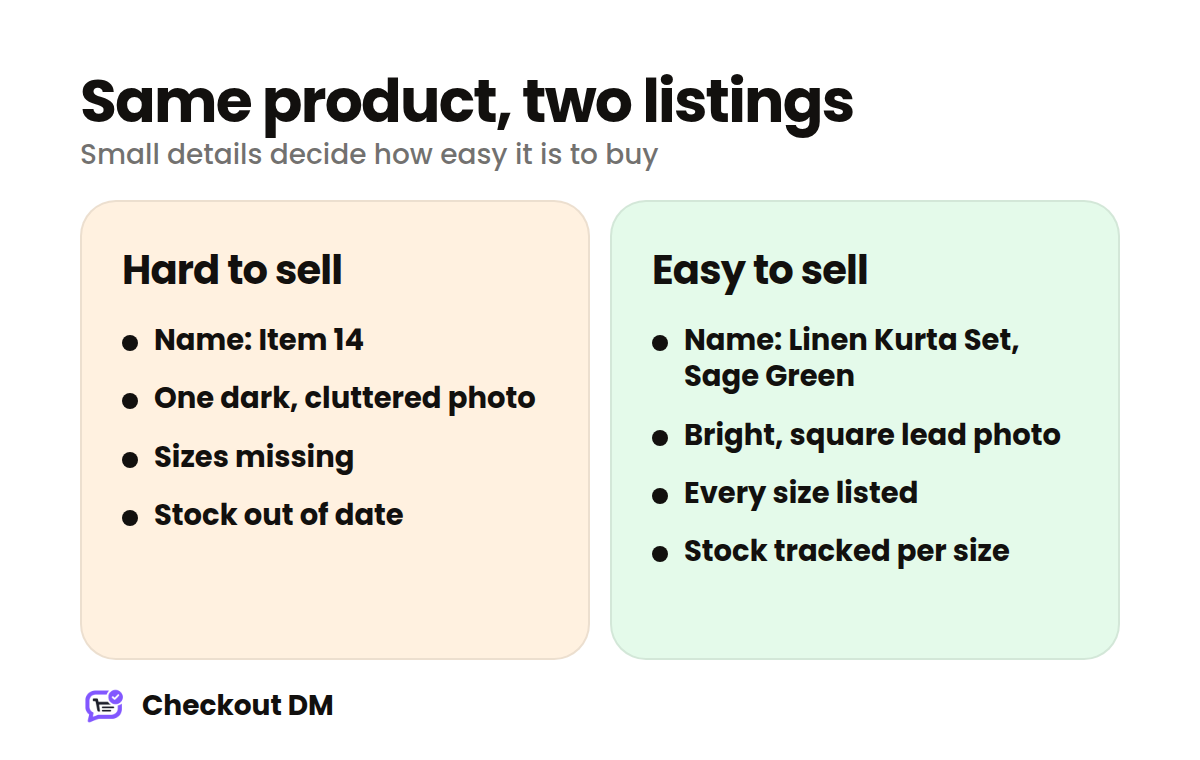
Name products the way customers search
Customers can browse your catalog by category or search by product name, so your names should use the words people actually type. Colour, type and material beat internal codes and marketing slogans.
| Instead of | Try |
|---|---|
| Item 14 | Linen Kurta Set, Sage Green |
| Summer special | Cotton Co-ord Set, Cream |
| New arrival!! | Handmade Silver Jhumkas |
Photos: one clear lead image
- Use a consistent shape. Square photos in the same style make the catalog feel like one shop.
- Light it well. Natural daylight beats flash almost every time.
- Keep the background simple. The product should fill the frame, not compete with a busy room.
- Show scale or fit. A hand, a model or a ruler answers questions a flat photo cannot.
If you have many photos to add, Pro merchants can upload up to 50 product photos at once and turn them into draft products. See the bulk photo upload guide.
Sizes and variants
- List every size you sell. Customers choose a size right after they pick a product, so the options should be complete.
- Track stock per size. Checkout DM tracks stock for each size, so a size that has sold out is not offered to customers.
- Have a size guide ready. Most size questions are the same question. Put the answer where customers can find it.
Categories keep a bigger catalog easy
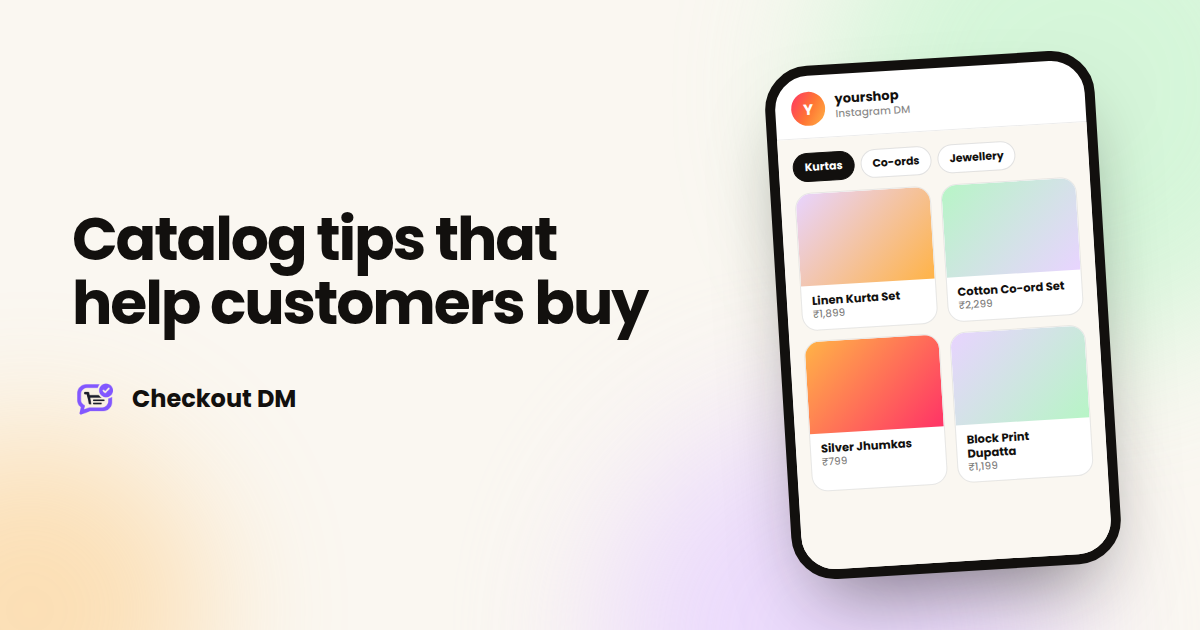
Once you have more than a handful of products, categories help customers browse inside the chat instead of scrolling past everything. Aim for a few clear groups, such as Kurtas, Co-ords and Accessories, rather than a long list of narrow ones.
Keep stock honest
Nothing hurts trust like a customer picking a product and hearing it is gone. Update stock as you sell offline, too. Growth and Pro plans also include low-stock alerts, so you hear about a running-low item before it sells out.
Share a catalog page, too
Paid plans include a public catalog page that customers can browse before they message you, while the DM handles the actual checkout. Put it in your bio so people can look around first. See the public catalog page guide for how it works. If you have no website yet, our guide to how to sell on Instagram without a website shows where the catalog page fits.
A listing template you can copy
Consistency is what makes a catalog feel professional. Use the same fields, in the same order, for every product.
- Name: type, colour and material, such as “Linen Kurta Set, Sage Green”.
- Price: the final price a customer will pay for the item.
- Photo: one clear lead image on a simple background.
- Sizes or variants: every option you actually sell, with stock for each.
- Category: one clear group, such as Kurtas or Accessories.
- Short description: one or two lines on fabric, fit or what is included.
A simple photo shot list
You do not need a studio. A phone, daylight and a plain wall or a sheet of paper are enough. For each product, aim for these shots:
- The lead image. The whole product, centred, in even daylight. This is the photo customers see first.
- A close-up. Texture, stitching, print or finish, which shows quality in a way a full shot cannot.
- In use. The product worn, held or used, so customers can judge size and style.
- Scale. Something that shows how big or small it really is.
- The back or inside. For anything where customers would otherwise ask, “What does the other side look like?”
Edit lightly. A little brightness and a straight crop help, but heavy filters make colours misleading, and misleading colours cause returns.
Handling colours, sizes and variants
A product that comes in several colours and sizes can be listed in more than one way. Treat each choice the customer must make as a separate, clear step.
- Sizes: list every size, and keep a size guide ready, since that is the most common question.
- Colours: if each colour has its own photo, list each as its own product so the customer sees the exact item they are buying.
- Bundles and sets: name what is included, so nobody is surprised by what arrives.
A restock and update routine
A catalog is never finished. A short weekly check keeps it trustworthy.
- Update stock for anything you sold outside Instagram.
- Hide or mark products that are no longer available.
- Add new arrivals with the same template.
- Refresh photos for your best sellers if the lighting or styling has improved.
- Check your most-asked questions and add the answers to your listings.
Common catalog mistakes
- Vague names that customers cannot search for.
- Inconsistent photos that make the shop look unfinished.
- Missing sizes that lead to avoidable questions.
- Out-of-date stock that creates disappointed customers.
- Too many products too soon. A small, accurate catalog beats a large, messy one.
Once your catalog is ready, the next step is deciding how customers will start a purchase. Our guide to automating sales on Instagram walks through that setup in order.
Related reading
Frequently asked questions
How many products can I list?
The Free plan includes up to 5 products. Creator includes 150, Starter 500, Growth 1,000 and Pro 10,000.
Can customers browse products by category inside DMs?
Yes. Customers can browse your catalog by category directly in DM, or search by product name, whichever is faster for them.
Can I upload many product photos at once?
Yes, on the Pro plan. You can upload up to 50 product photos at once and turn them into draft products ready to finish.