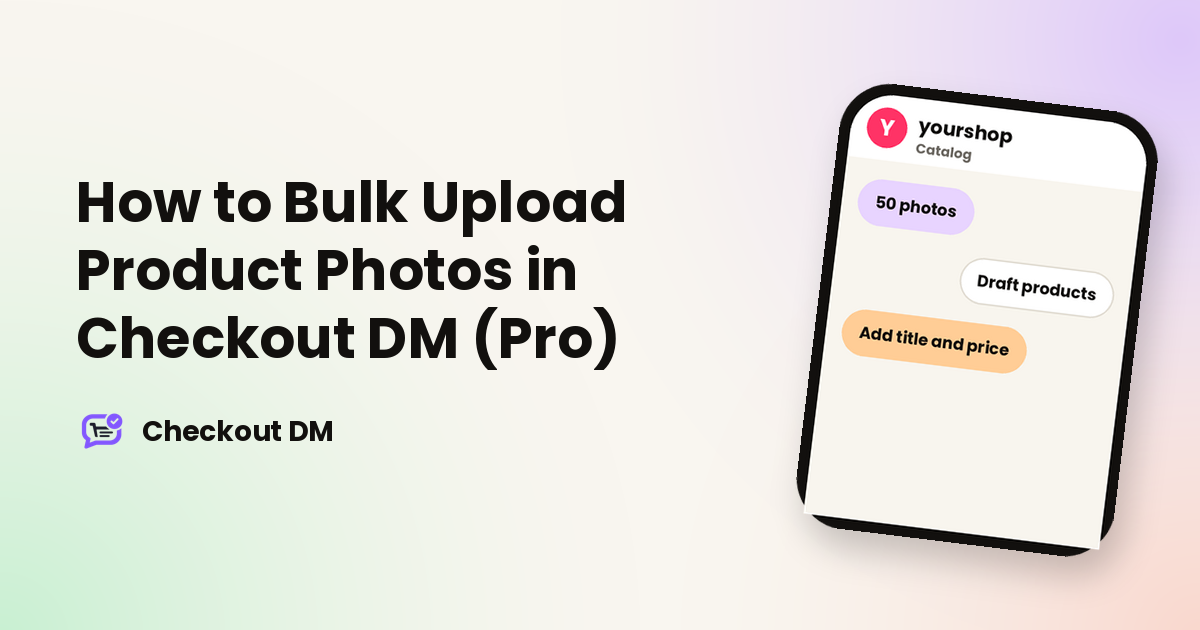
Adding a large catalog one product at a time takes a long time. Bulk photo upload is a Pro-only shortcut: select a batch of photos in one step, and each photo becomes its own draft product in your catalog straight away, ready for you to finish with a title and price.
How to upload
- Open the Catalog page and click Bulk upload photos, next to Export CSV at the top of the screen. Both buttons are visible to Pro merchants only.
- Select your photos. Pick up to 50 JPG files at once from your device. Any number from 1 to 50 works. If you select more than 50, only the first 50 are uploaded and the rest are ignored, so upload larger sets in separate batches.
- Wait for the upload to finish. The button shows Uploading while it works. When it is done, a new draft product card appears at the top of your catalog for every photo you selected.
The file rules
The rules are the same as for adding a single product photo.
- JPG only. PNG, WEBP and HEIC are rejected. If your phone saves photos as HEIC, convert or export them as JPG first.
- Up to 1 MB per photo. Compress or resize a larger photo and upload it again.
- Up to 50 photos per batch. For more, run another batch once the first one finishes.
- Pro plan only. On Free, Starter or Growth, you add photos one at a time through the regular Catalog edit form.
Good photos matter for conversion, since a customer sees the picture inside the DM card. Our guide to Instagram catalog photos and sizes has practical advice on what to shoot before you upload.
What a draft product looks like
Every photo becomes a real product row, just an incomplete one, added in the order you picked the files. Nothing is left half-finished behind the scenes.
- Placeholder title: each draft is labelled Untitled product, tap Edit to finish, until you rename it.
- Zero price: the price starts at 0 for every draft, and the bot will not quote a real price to a customer until you set one.
- Hidden from customers: drafts are marked sold out and hidden from DMs from the moment they are created, so nothing half-finished reaches a customer in a chat.
Finishing your drafts
A bulk upload gets your photos in quickly, but each product still needs a title and a price before the bot will offer it. Tap Edit on a draft card like any other product and fill in the title and price at minimum. Quantity, sizes and description are optional, as always. The moment you save, the product behaves like any other: it comes off the hidden state and the bot can offer it to customers right away. Export CSV is a handy way to review everything at once, including which drafts still need finishing, but it is not a required step.
A workable routine for a big catalog
- Export or collect your product photos as JPG files under 1 MB each, with a batch of no more than 50.
- Use Bulk upload photos, then wait for the button to stop showing Uploading.
- Work down the new draft cards at the top of the catalog, tapping Edit on each one to add a title and price, plus any sizes, quantity or description you want.
- Repeat with the next batch of up to 50 until the whole range is listed.
Pro is built for large catalogs. The Pro plan allows up to 10,000 catalog products, so listing in batches of 50 is a practical way to get a big range live without opening the Add product form for every item. Because drafts stay hidden until you save them, you can upload today and finish the details over several days without any customer seeing an unfinished item.
Troubleshooting
- Unsupported image type: one or more files are not JPGs. Convert them and try again.
- Image too large: one or more photos are over 1 MB. Compress or resize them and re-upload.
- Some photos are missing: you selected more than 50, so only the first 50 were uploaded. Upload the rest as a second batch.
- The button is not visible: bulk photo upload is only shown to Pro merchants.
Once your drafts are finished, write descriptions that answer the questions customers ask most. Our guide to writing product descriptions for Instagram sellers can help.
Related reading
Frequently asked questions
How many photos can I upload at once?
Up to 50 JPG photos per batch. If you select more than 50, only the first 50 are uploaded.
What file type and size are allowed?
JPG only, up to 1 MB per photo. PNG, WEBP and HEIC files are rejected.
Will customers see my drafts in DMs?
No. Drafts are hidden and marked sold out until you edit them and save.
What do I have to fill in on each draft?
At minimum a title and a price. Quantity, sizes and description are optional.
Is bulk photo upload on every plan?
No. It is a Pro feature. On other plans you add photos one at a time through the Catalog edit form.
In what order do the drafts appear?
Each photo becomes its own draft product, added to the top of your catalog in the order you picked the files.
Do I need to use Export CSV first?
No. Export CSV is a separate button that helps you review everything at once, including which drafts still need finishing, but it is not a required step.