Taking the order and the payment in a DM is half the job. The other half is getting the parcel out: opening your courier dashboard, copying the address, picking a weight and booking a pickup, one order at a time. When you have a busy week, that is where hours disappear.
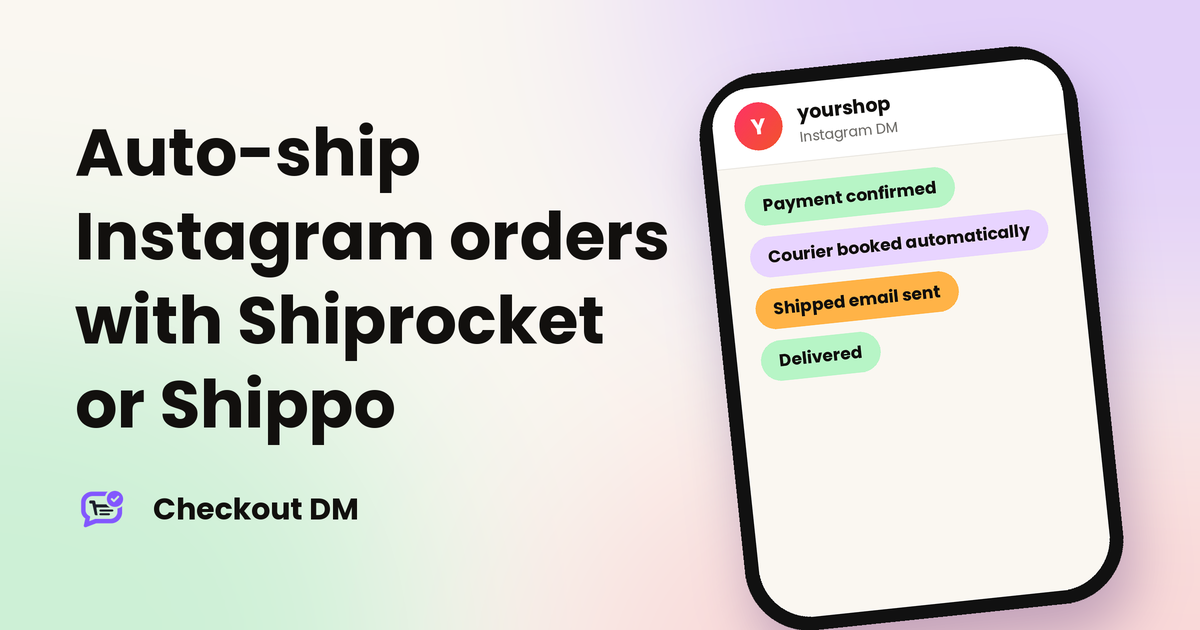
Checkout DM can do the booking for you. Connect a supported shipping partner, Shiprocket or Shippo, from your dashboard, and orders are shipped automatically after payment. This guide explains the one-time setup, what happens to each order and the cases where you still step in.
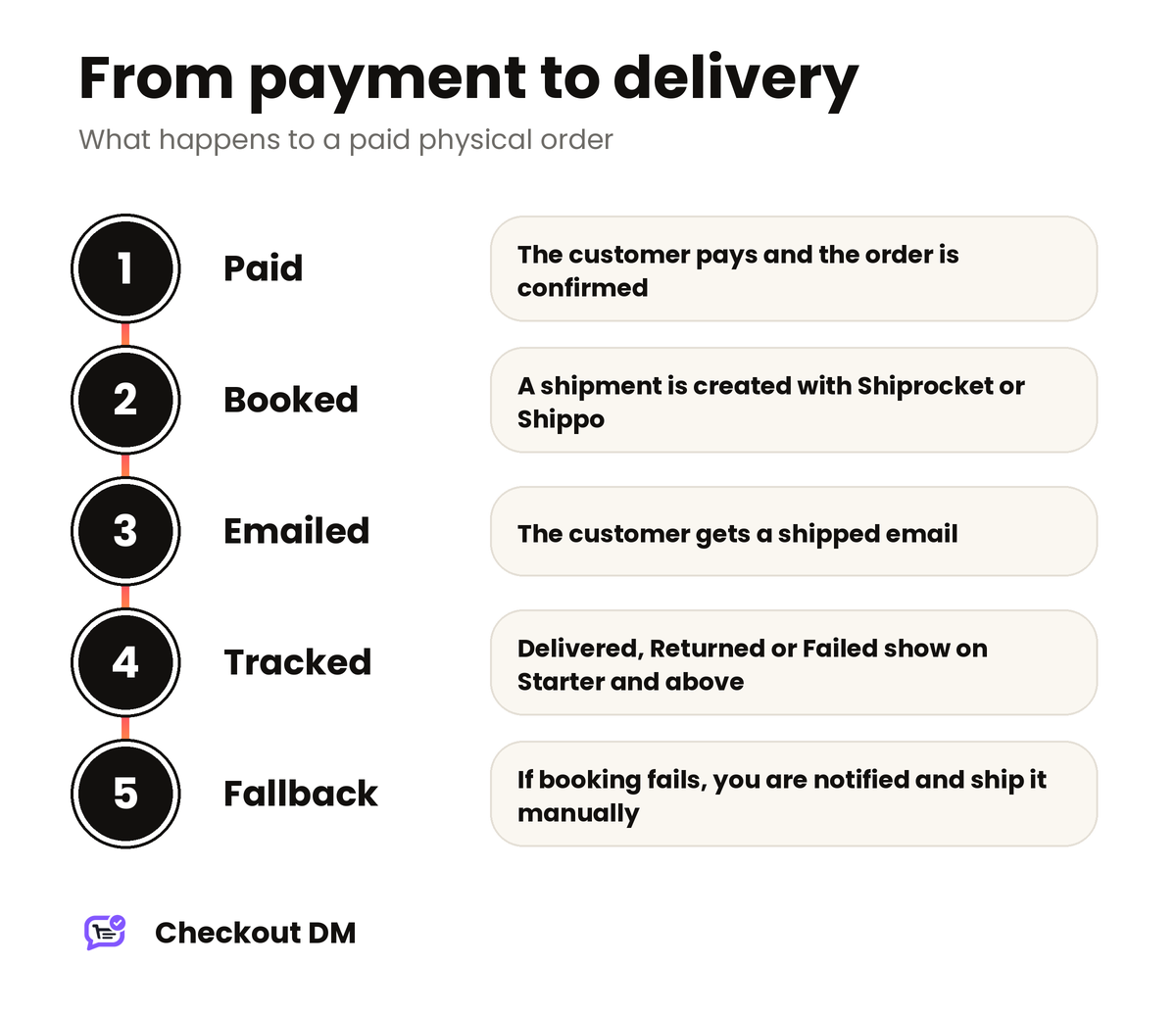
What happens to an order
- The customer pays and the order is confirmed as paid.
- Checkout DM creates the shipment with your connected courier partner, using the address the customer gave in the chat and your ship-from details.
- The customer gets a shipped email, which is sent when an order is marked shipped or a courier is booked.
- Delivery status updates can then appear on your Orders tab if you have connected tracking (Starter, Growth and Pro).
Digital-only orders are never sent to a courier, because there is nothing to ship. If you are also thinking about the physical side, our guide to packing and shipping Instagram orders covers boxes, labels and handover.
Setting up Shiprocket
Open the Courier page in your dashboard and connect Shiprocket. A few details are worth knowing before you start:
- Email and password only. Checkout DM connects using your Shiprocket email and password. If you signed up to Shiprocket with Google or your phone number, use Shiprocket’s Forgot password link to set a password first.
- A one-time IP step. Shiprocket blocks requests from servers it does not recognize, so you add Checkout DM’s server IP to your allowed IPs. Add it while you generate a new API user, because editing an existing one may not work.
- Your pickup location. Enter the pickup location name exactly as it is registered in your Shiprocket account, under Settings and Pickup Addresses. This is where couriers collect your packages.
Setting up Shippo
- An API key. Copy it from the API keys section of your Shippo dashboard. Use a Test token first to try things out without real charges, then switch to your Live token when you are ready to ship for real.
- A ship-from address. You set it once and it stays the same for every order. Some carriers need contact details for pickups, so fill in the required fields.
Make the shipments accurate
Courier rates depend on weight and size, so set these per product in your Catalog:
- Weight. If a product has no weight yet, Checkout DM estimates 500 g per item so the shipment still goes through. Real weights give more accurate rates.
- Package size. Dimensions default to 10 × 10 × 10 cm per product unless you set your own. This affects rate accuracy for both partners.
- Customs details for international orders. Shipping outside your ship-from country requires an item description, an HS code and a value, added per product in the Catalog before you ship internationally.
Delivery tracking
On Starter, Growth and Pro you can connect tracking, so the Orders tab shows Delivered, Returned or Delivery failed instead of a plain Shipped. It is a one-time step per account: you register a webhook in your courier dashboard using details shown on Checkout DM’s Courier page. The step-by-step instructions are in the Shiprocket tracking guide and the Shippo tracking guide.
On the Free plan the Orders tab keeps showing Shipped. On Growth and Pro, Checkout DM also double-checks orders that have been shipped for a while, in case a status update is ever missed. Tracking also feeds returns: it lets Checkout DM schedule a Shiprocket reverse pickup automatically once a return is approved on a delivered order, as explained in our guide to returns and exchanges in Instagram DMs.
Pickups and the checklist before you go live
Booking a courier is not the same as handing over the parcel. You can schedule a pickup, and a reverse pickup for returns, from your dashboard. Before you switch automation on for real orders, run through this short list:
- Your courier account is connected on the Courier page, and the connection was accepted.
- Your ship-from address and, for Shiprocket, your pickup location are saved.
- Your products have real weights and package sizes, or you accept the default estimates.
- International products have customs details if you ship abroad.
- Delivery tracking is connected if you are on Starter, Growth or Pro.
When something goes wrong
If auto-shipment fails for an order, you get a notification and you can still ship that order manually from the Orders tab. Starter, Growth and Pro also include reminders for unshipped orders, which helps when a booking needs your attention.
Related reading
Frequently asked questions
Which shipping partners work with Checkout DM?
You can connect Shiprocket or Shippo from your dashboard. Once connected, orders are shipped automatically after payment.
Do I need a paid plan to auto-ship orders?
Courier booking is available from the Courier page. Automatic delivery-status tracking is the part that needs Starter, Growth or Pro. Creator is digital-only, so shipping does not apply to it.
What if automatic shipping fails for an order?
You receive a notification and can ship the order manually from the Orders tab.
Are digital orders sent to a courier?
No. Digital-only orders are never sent to a courier, because nothing needs to be shipped.
What do I need to ship internationally?
Shipping outside your ship-from country needs customs details for each product: an item description, an HS code and a value. Add them in your Catalog before you ship internationally.