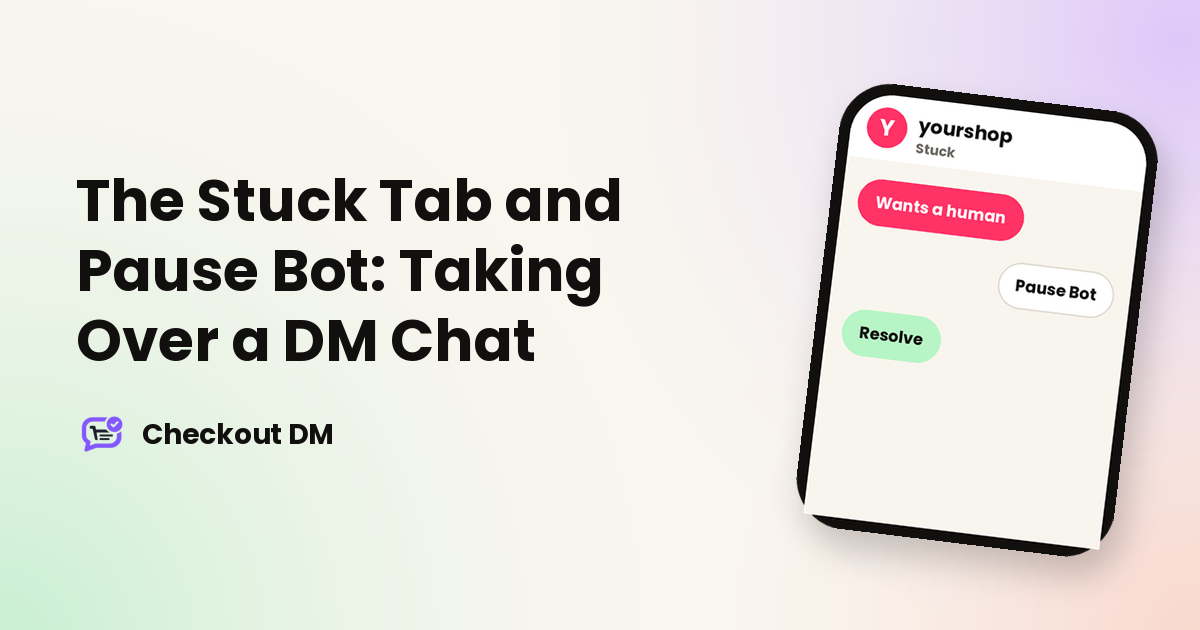
The Checkout DM bot handles most of the buying flow on its own. Sometimes a conversation needs a person: the customer asks for one, a reply was not understood or a cart has gone quiet. The Stuck tab collects those chats in one place, and Pause Bot lets you take over one of them without the bot talking over you.
What the Stuck tab is for
Stuck is not a general activity feed. It lists chats that need you, specifically. A conversation lands there when:
- the bot got stuck, for example it could not understand a reply or hit an edge case, and handed the conversation over;
- a cart has been sitting untouched;
- a product the customer chose was deleted;
- there has been no reply for 7 or more days; or
- the customer explicitly asked for a human.
Think of it as your daily list of what needs a reply from you. If the tab is empty, nothing is currently waiting on you. It is designed to be checked regularly rather than searched. The Stuck tab is available on Starter, Growth and Pro.
What each row tells you
- Customer: who is waiting, linked to their Instagram profile when available.
- State: the bot conversation state this customer is currently frozen in.
- Retries: how many times the bot already tried and failed to move the conversation forward before flagging it to you.
- Stuck on: why the row needs you. A pink Wants a human tag means the customer explicitly asked to talk to a person, with their message shown underneath. Otherwise it names the reason, such as an abandoned cart.
- Last update: the last time anything happened, which helps you judge how urgent or stale the chat has become.
For abandoned carts, the reason a customer gives for not finishing checkout is shown in full on Growth and Pro. A note such as Asked about a discount tells you the customer stalled over price, which is useful context before you reach out. Starter shows the reason for a limited number of carts.
How a customer asks for a human
When a customer asks to speak to a person, the bot first confirms that they want to be handed over and asks why. If it does not have their Instagram handle saved, it asks for that before handing the chat over. Whether they reply or not, the chat then lands in Stuck, so you will see it. Two other states worth knowing are manual review, where the bot got stuck and needs a manual reply, and a blocked state, where the bot permanently stopped replying to a customer because it detected an unusually high volume of messages in a short time. That is usually spam or an accidental loop rather than a real order. Our status badges guide explains every state.
Pause Bot: reply yourself without the bot interrupting
If you jump into Instagram and reply to a customer while the bot is still active, the two of you can talk over each other. Pause Bot prevents that. It stops the bot from auto-replying to that one customer for as long as you choose. Everyone else’s conversations keep running normally.
- Open the pause dialog. Click Pause Bot on the customer’s row.
- Choose how long. Pick 5, 10, 15 or 30 minutes, or enter a custom number of minutes (between 1 and 1,440, which is 24 hours). The default is 10 minutes.
- Decide whether to tell the customer. A checkbox, ticked by default, tells the customer that the bot is paused.
- Reply on Instagram. The bot will not answer that customer until the pause ends, so you can have the conversation yourself.
The pause ends on its own when the timer runs out. If you finish early, press Resume Bot, which shows a live countdown, to hand the conversation back.
Resolve is separate from Pause
Pausing does not clear a row from Stuck. That is what Resolve is for. Resolve marks the conversation as handled and removes it from your list. Use it once you have sorted things out with the customer, whether or not you used Pause Bot to do it. It never happens automatically. A row stays in Stuck until you resolve it or the bot moves the conversation forward on its own.
Related reading
Frequently asked questions
What lands in the Stuck tab?
Chats where the bot got stuck and handed over, carts left untouched, chosen products that were deleted, chats with no reply for 7 or more days and customers who asked for a human.
Does Pause Bot stop the bot for all my customers?
No. It only affects the one customer you pause. Every other conversation keeps running normally.
How long can I pause the bot for?
Choose 5, 10, 15 or 30 minutes, or a custom number of minutes between 1 and 1,440.
Does pausing remove the chat from Stuck?
No. Use Resolve for that. A row stays in Stuck until you resolve it or the bot moves the conversation forward on its own.
Which plans have the Stuck tab?
Starter, Growth and Pro.
Does the customer know the bot is paused?
Only if you want them to. The pause dialog has a checkbox, ticked by default, that tells the customer the bot is paused.
Can I hand the chat back to the bot before the timer ends?
Yes. Press Resume Bot, which shows a live countdown while the pause is active.